
Editing terms
Double-click a term (or click Edit) to open the term editor. Five tabs cover everything: General, Content, Metadata, Links, and Backlinks. This chapter covers the first three; links get their own chapter.
General tab — identity and state
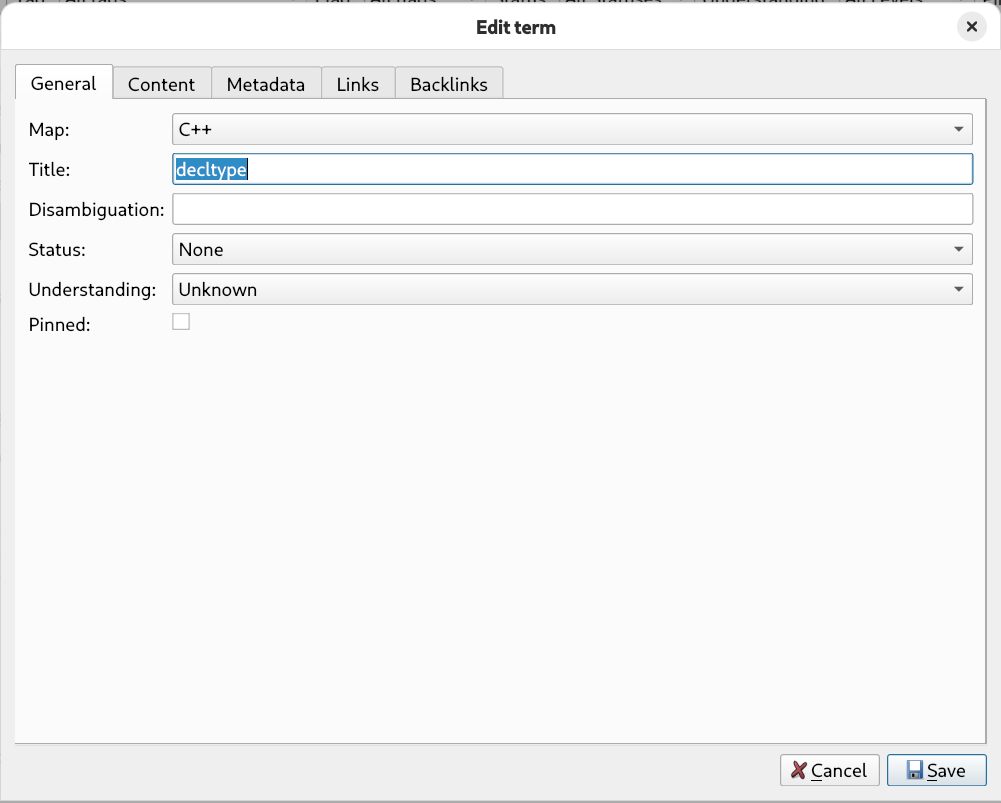
| Field | Purpose |
|---|---|
Map | Which map the term belongs to. |
Title | The term's name. Required. |
Disambiguation | Optional qualifier that lets the same title exist more than once in one map — e.g. Index (database) vs. Index (array). |
Status | Editorial state of the entry: None, Draft, or Completed. |
Understanding | How well you understand the concept — see the scale below. |
Pinned | Marks important terms so you can filter for them instantly. |
The understanding scale
Lexicon is a learning tool, so it tracks your personal mastery of every concept:
| Level | Meaning |
|---|---|
| Unknown | Never encountered the concept. |
| Recognized | Seen before, can identify it. |
| Understood | Conceptually grasped. |
| Practiced | Can apply it in real situations. |
| Mastered | Fully internalized — can teach or innovate. |
Review workflow Filter for Understanding = Recognized to get an instant list of concepts you should revisit. Update the level as you learn — watching it climb is great motivation.
Content tab — write in Markdown
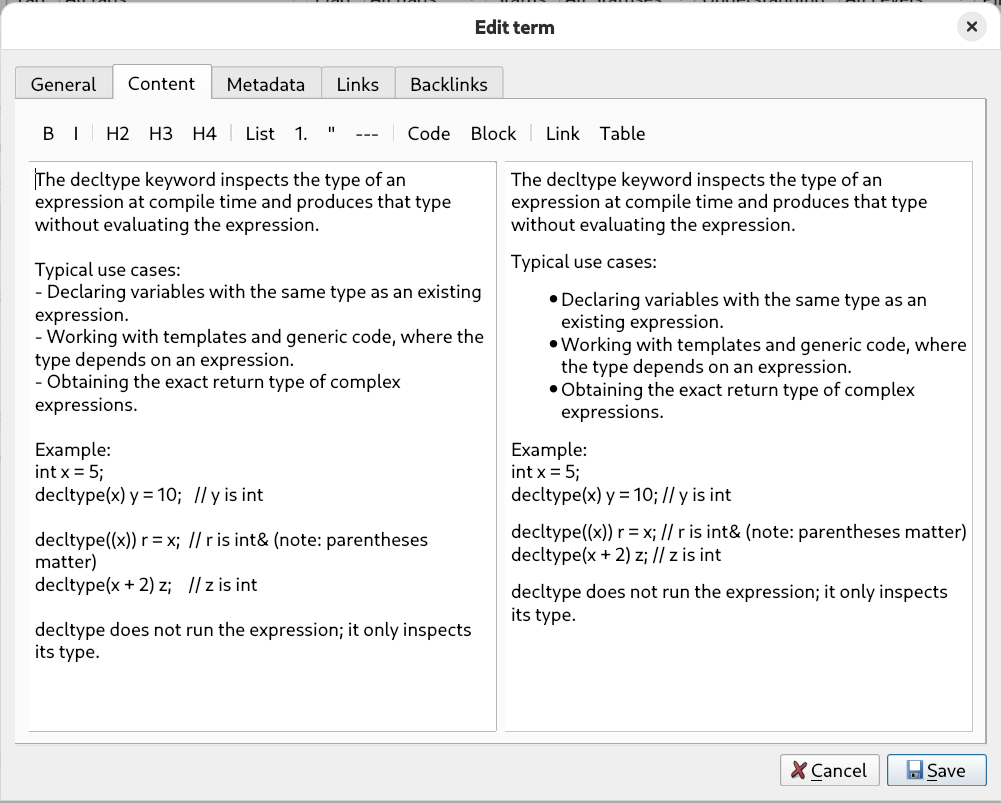
The Content tab is a split view: the left pane holds the raw Markdown, the right pane renders it as HTML. The preview updates automatically as you type.
The formatting toolbar inserts Markdown for you:
- Bold and italic
- H2 / H3 / H4 headings
- Bullet lists and quotes
- Horizontal rules
- Inline code and fenced code blocks
- Links and tables
A typical term might look like this:
## Definition

**Move semantics** transfer resources instead of copying them.

## Key points

- introduced in C++11
- enabled by rvalue references (`T&&`)
- `std::move` is just a cast

## Example

```cpp
std::vector<int> a = make_data();
std::vector<int> b = std::move(a); // no copy
```
Metadata tab — tags, flags, aliases
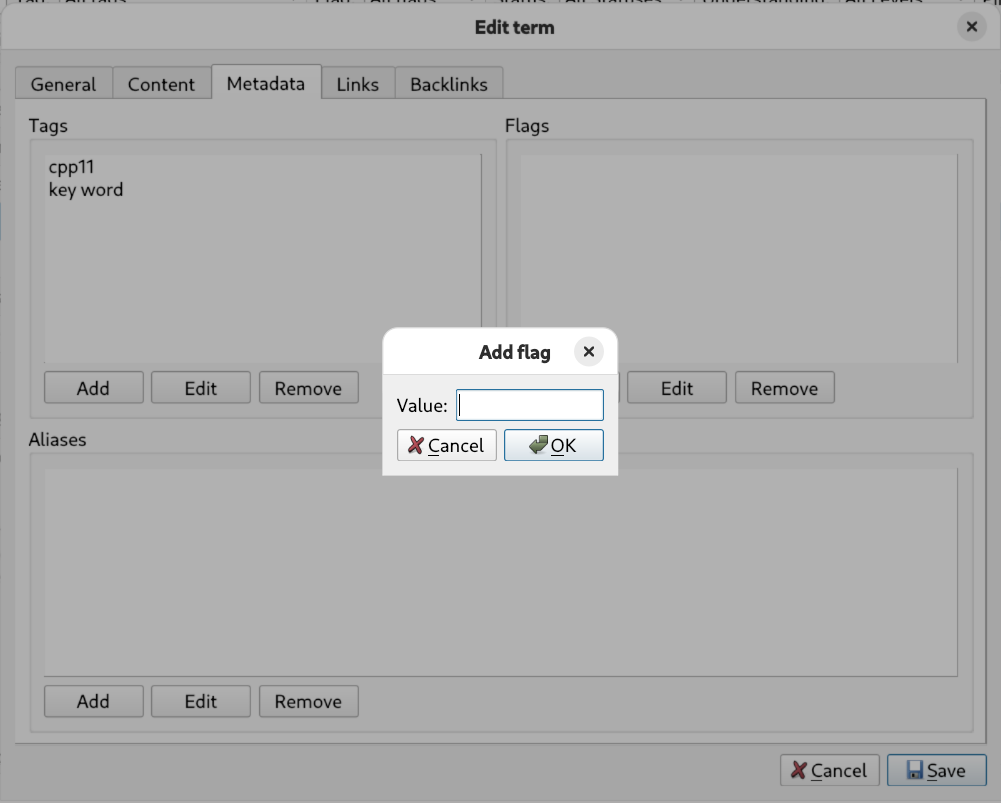
| Kind | Use for | Examples |
|---|---|---|
| Tags | Classification — topics, versions, domains. | cpp20, templates, concurrency |
| Flags | Workflow markers — priority or state you act on. | review, needs-example, important |
| Aliases | Alternate names, abbreviations, spellings — all searchable. | RAII, ctor, k8s |
Keep vocabulary consistent Prefer one canonical spelling per tag (e.g. always cpp20, never a mix with c++20). The global overviews show every tag, flag, and alias with usage counts — perfect for spotting duplicates.
Tags vs. flags If it describes what the term is about, it's a tag. If it describes what you still need to do with it, it's a flag.