
Editing items
Double-click an item (or click Edit) to open the item editor. Six tabs cover everything: General, Content, Values, Metadata, Links, and Backlinks. This chapter covers the first four; links get their own chapter.
General tab — identity and state
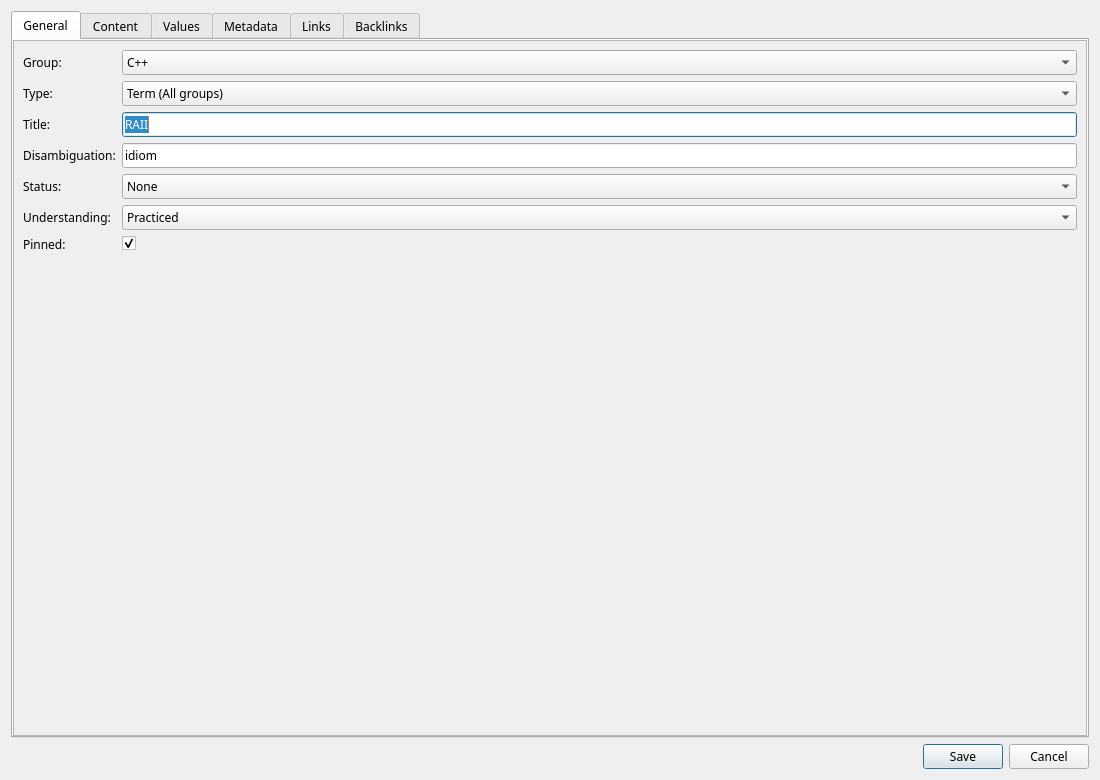
| Field | Purpose |
|---|---|
Group | Which group the item belongs to. |
Type | Optional class for this item. Global types and types scoped to its group appear here. |
Title | The item's name. Required. |
Disambiguation | Optional qualifier that lets the same title exist more than once in one group — e.g. Index (database) vs. Index (array). |
Status | Editorial state of the entry: None, Draft, or Completed. |
Understanding | How well you understand the concept — see the scale below. |
Pinned | Marks important items so you can filter for them instantly. |
Use Manage → Types... to create or edit types and their fields. Both types and fields have descriptions: a field description appears with its value editor and as a tooltip or supporting text where space is tighter.
Editing an Enum field's choices does not discard existing values. You may add choices or remove unused ones. Lexicon refuses to remove or rename a choice while any item still uses it; change those items to another choice first.
Changing a field's data type permanently clears its existing values. Desktop, web and Android therefore report the exact number of stored values and require the explicit Change and delete values action; Cancel leaves both the field and its values unchanged. Deleting a field or type also asks first. Before any of these operations discards values or type assignments, Lexicon snapshots every affected item in History in the same database transaction.
The understanding scale
Lexicon is a learning tool, so it tracks your personal mastery of every concept:
| Level | Meaning |
|---|---|
| Unknown | Never encountered the concept. |
| Recognized | Seen before, can identify it. |
| Understood | Conceptually grasped. |
| Practiced | Can apply it in real situations. |
| Mastered | Fully internalized — can teach or innovate. |
The level is also the schedule Review brings an item back 1, 2, 5, 12 or 30 days after you last saw it, following exactly this scale — and a rating moves the level for you. Filtering for Understanding = Recognized still gives an instant list of what to revisit.
Content tab — write in Markdown
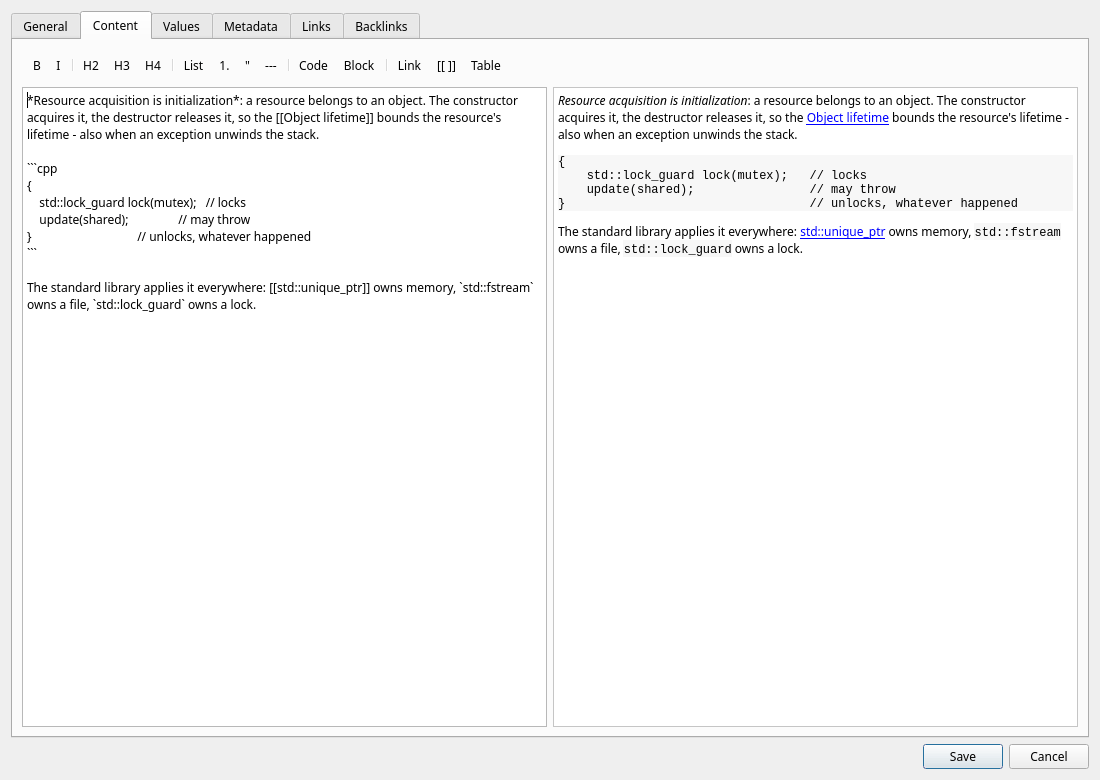
The Content tab is a split view: the left pane holds the raw Markdown, the right pane renders it as HTML. The preview updates automatically as you type.
The formatting toolbar inserts Markdown for you:
- Bold and italic
- H2 / H3 / H4 headings
- Bullet lists and quotes
- Horizontal rules
- Inline code and fenced code blocks
- Links and tables
A typical item might look like this:
## Definition

**Move semantics** transfer resources instead of copying them.

## Key points

- introduced in C++11
- enabled by rvalue references (`T&&`)
- `std::move` is just a cast

## Example

```cpp
std::vector<int> a = make_data();
std::vector<int> b = std::move(a); // no copy
```
Write [[Title]] to point at another item; in the preview it opens that item, and Lexicon offers to create it when there is none. See Links & relationships.
Values tab — custom fields
When an item has a type, its Values tab shows that type's fields and descriptions in position order. Fields can use integer, float, text, date, time, timestamp, boolean, enum, blob, image, or other values. Date/time values use ISO format; enum fields show their configured choices. The tab is disabled when the item has no type.
For a blob field, enter a file path or choose one with Browse.... Click Import to see its SHA-256 hash immediately, or save the item to import the entered path. This replaces that item's previous blob value. The bytes are stored under blobs next to lexicon.db; Save as... exports the current file.
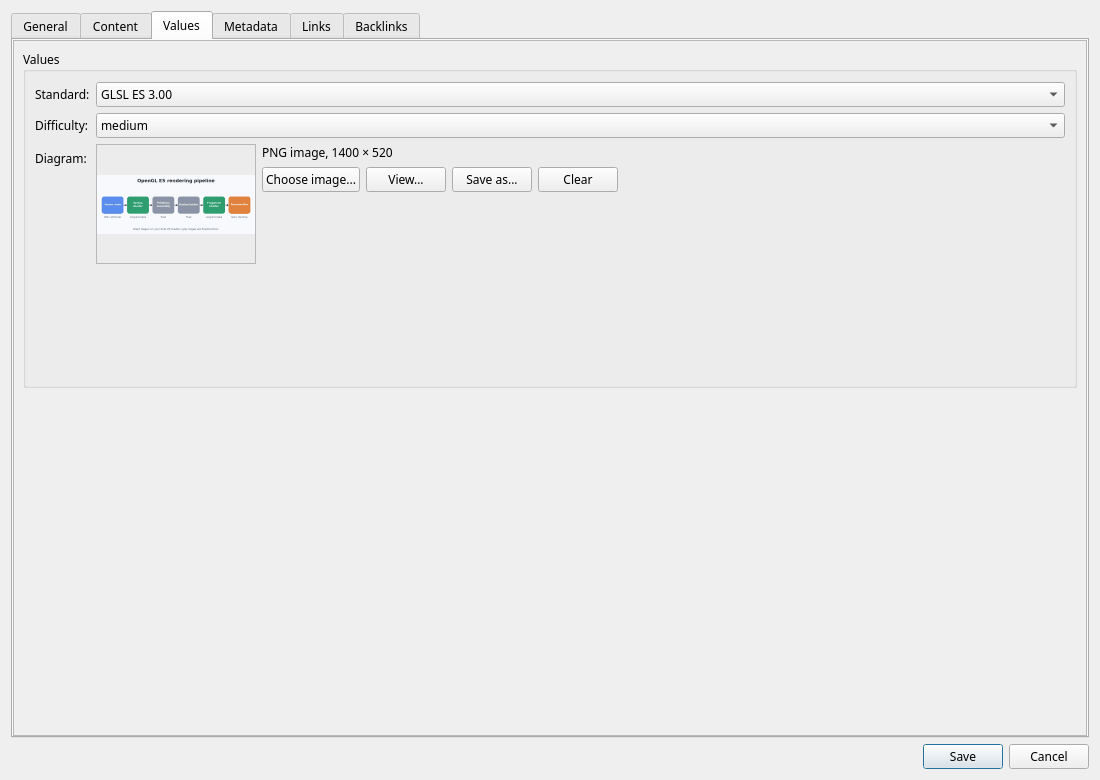
Image fields
An Image field holds a picture — a diagram, a formula, a photo of a whiteboard:
- Choose image... stores a PNG, JPEG, GIF, WebP or BMP file. The kind is read from the file itself, not from its name.
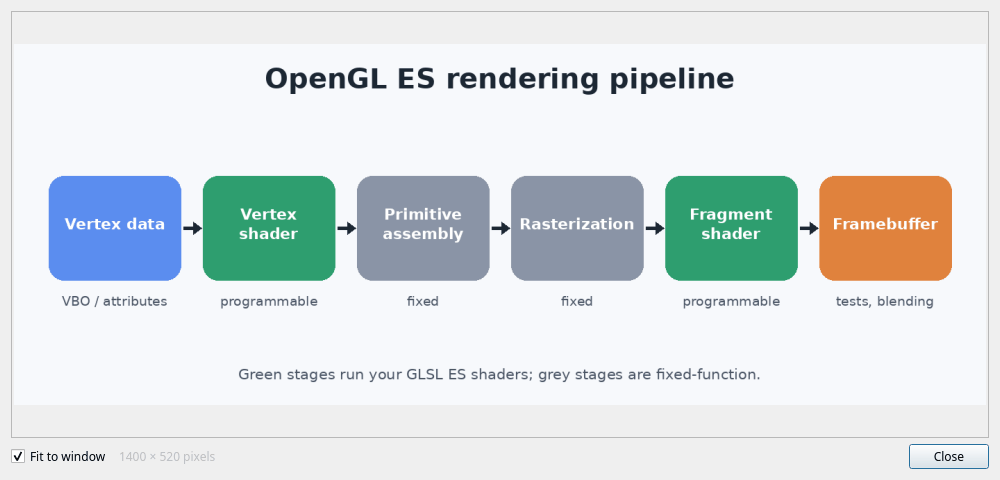
- The editor shows a thumbnail and what the image is; View..., or a click on the thumbnail, opens it at full size.
- Save as... writes the picture back to a file and Clear removes it.
- The item preview shows every image under the item's content, and the item table shows a small picture in the column of that field.
The web client and the Android app choose, show and save images the same way — including the full-size viewer.
In the main window, selecting a specific Type adds columns for these values and filters for each field. Text filters match part of a value; other fields use exact matches.
Metadata tab — tags, flags, aliases, properties
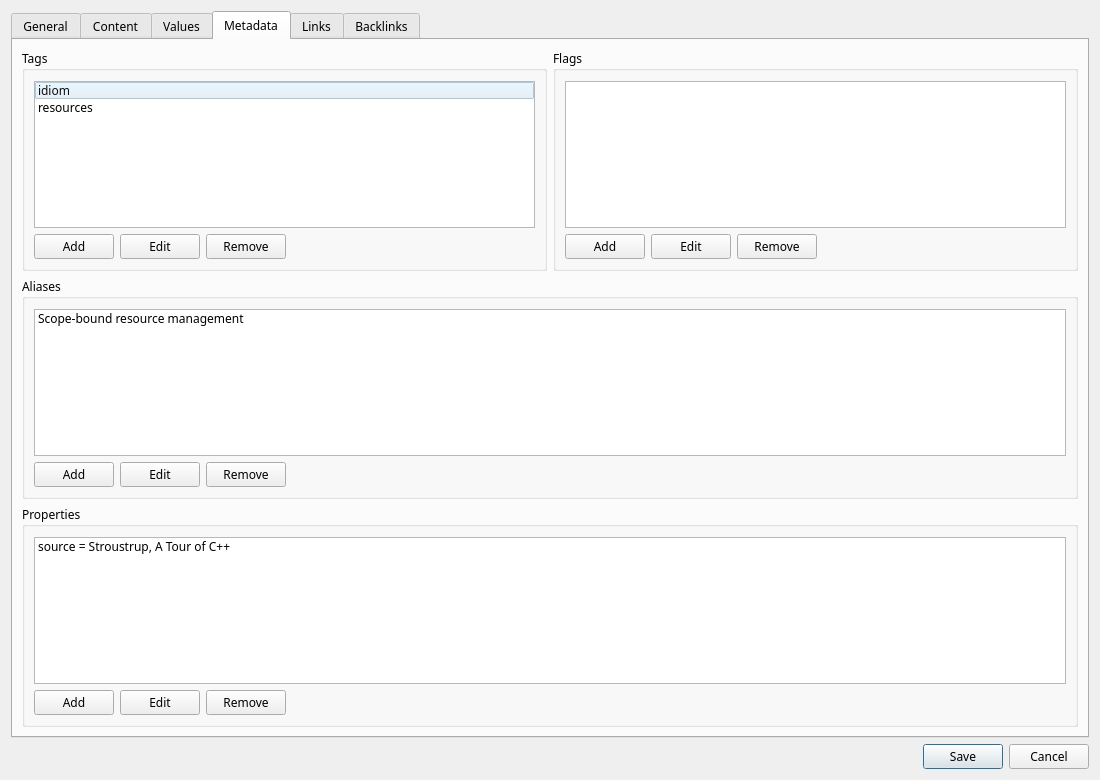
| Kind | Use for | Examples |
|---|---|---|
| Tags | Classification — topics, versions, domains. | cpp20, templates, concurrency |
| Flags | Workflow markers — priority or state you act on. | review, needs-example, important |
| Aliases | Alternate names, abbreviations, spellings — all searchable. | RAII, ctor, k8s |
| Properties | Additional text key/value pairs specific to an item. | source = book |
Keep vocabulary consistent Prefer one canonical spelling per tag (e.g. always cpp20, never a mix with c++20). The global overviews show every tag, flag, and alias with usage counts — perfect for spotting duplicates.
Tags vs. flags If it describes what the item is about, it's a tag. If it describes what you still need to do with it, it's a flag.
Mass Insert — create many items
The desktop and web clients can create a batch without reopening the item editor: choose Manage → Mass Insert..., select the required Group and, optionally, a Type, then fill the worksheet. The first column is always Title. It is followed by Disambiguation, Aliases, Tags, Flags, Status, Understanding, Pinned, Markdown Content and Properties. When you choose a Type, one additional value column appears for each of its fields; Image columns choose and import or upload an image file rather than asking for its SHA-256.
Use Add row for another item and Remove to drop a row. Aliases, tags and flags are comma-separated. Properties use key=value, with entries separated by semicolons or new lines. Empty rows are ignored, but every non-empty row needs a Title.
Your unfinished batch is recoverable. Every edit is backed up locally: in the desktop application's settings or in this browser for the current user and server. Closing Mass Insert keeps the draft and offers to resume it next time. During insertion, each accepted row is removed from the draft immediately, so a failure leaves only the rows still waiting. Discard draft is the explicit way to erase it.
Mass Insert is intentionally not part of the Android client. See the dedicated Mass Insert guide for the full workflow, Type value editors and recovery rules.
Saving, and what happens if someone else was faster
Every item carries a revision that moves on with each change to it, its values or its links. If another client — the desktop, the browser or the phone — saved the item after you opened it, your save is not written silently over theirs. Lexicon lists what differs and offers to Overwrite the newer version, Reload it and drop your changes, or go back to editing.
The desktop editor's Undo and Redo buttons (Ctrl+Z and Ctrl+Y/Ctrl+Shift+Z) can reverse unsaved changes across fields, metadata and links. Closing or cancelling a changed desktop editor asks before those edits are discarded. After saving, open the selected item's History to restore an earlier version. Trash lists deleted items and can recreate one with its cards and links; the restored item receives a new ID. These actions are also available in the web and Android clients. Type and field operations snapshot affected items before discarding their assignments or values. Such a snapshot keeps the old IDs and raw values, but automatic restoration requires compatible type and field definitions, so keep full database and Blob backups too.