
Server, web & Android
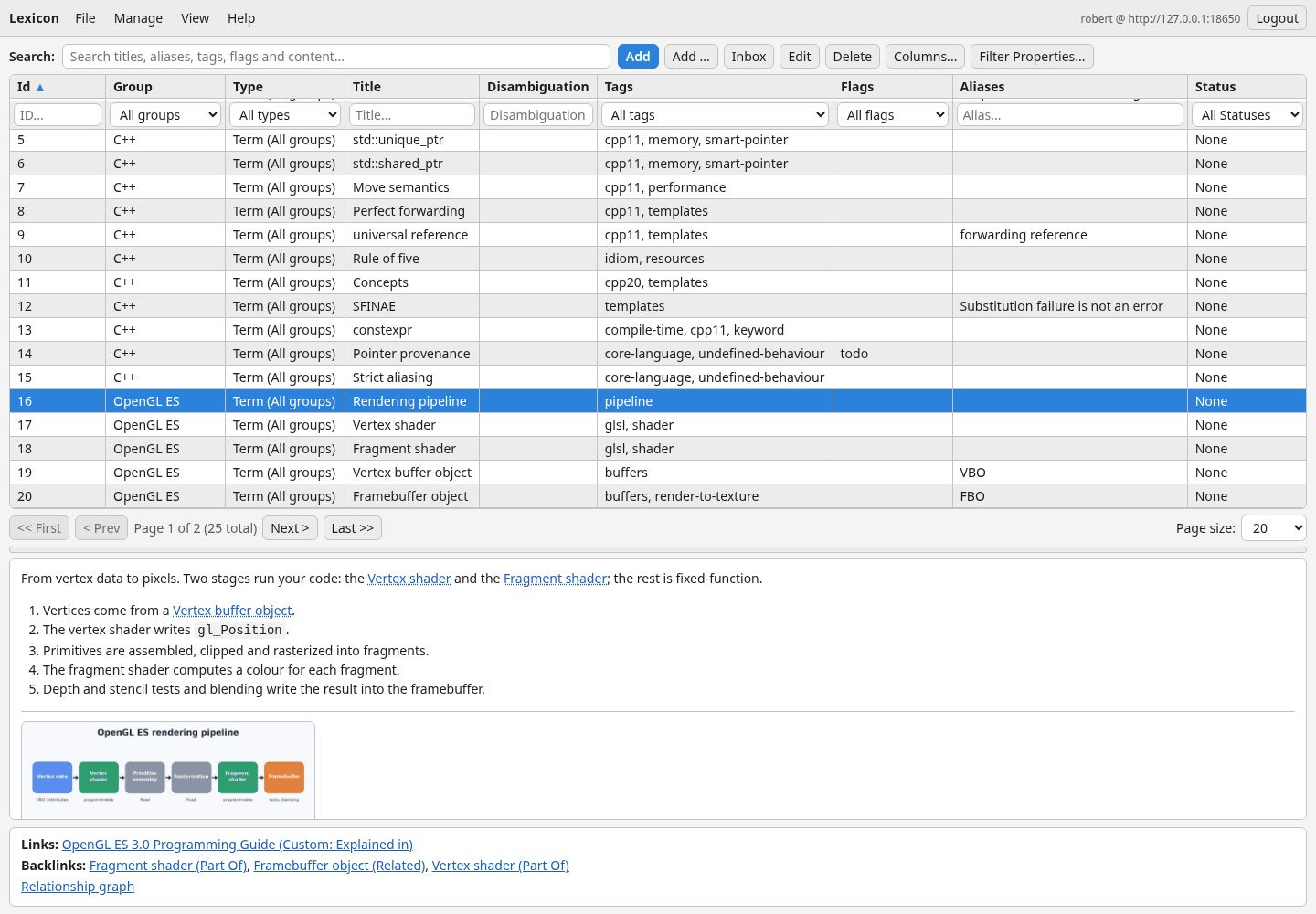
The desktop client opens the SQLite file directly. Run LexiconServer next to that same file and the dictionary is also available in a browser and on your phone — the same items, reviews, alarms and shared Boards.
1. Run the server
Build LexiconServer as described in Installation (it needs no Qt), create the single user it serves, and start it:
LexiconServer auth set-user --database ~/lexicon/lexicon.db
LexiconServer --database ~/lexicon/lexicon.db \
  --allowed-origin http://127.0.0.1:8080 \
  --backup-dir ~/lexicon-backups
Use an absolute --database PATH in a service or launch script (the shell expands ~ in the example). As a safety guard, the server resolves the path to an absolute, normalized path once at startup before deriving the Blob, credential and session locations.
It listens on 127.0.0.1:8628 by default and answers REST calls under /api/v1. A browser client served from another address needs that address as an --allowed-origin; without one it is refused on purpose — unless the server serves the client itself, see below. --backup-dir turns on automatic backups; without it automatic backups are disabled.
Off the loopback, use HTTPS. Put a reverse proxy (nginx, Caddy, Apache) with a certificate in front of the server, or give it --tls-cert and --tls-key. For a closed test network only, --listen 0.0.0.0 --allow-http permits plain HTTP and prints a warning. An HTTPS web page cannot call an HTTP API because browsers block mixed content. The full list of options is in docs/server.md.
2. The web client in a browser
lexicon-web/ is static content — HTML, CSS and JavaScript with no build step. The shortest way to it is to let the server serve it:
LexiconServer --database ~/lexicon/lexicon.db --web-dir /path/to/lexicon-webOpen http://127.0.0.1:8628/ and you are on the client: it is served read-only under /web on the same port, it finds the API by itself because it is the same address, and --allowed-origin is not needed at all. One process is then the whole installation.
You can also copy the directory to any web server instead — GitHub Pages, nginx, a Raspberry Pi. Then tell the server that address with --allowed-origin, and sign in with the server's address, your user name and your password.
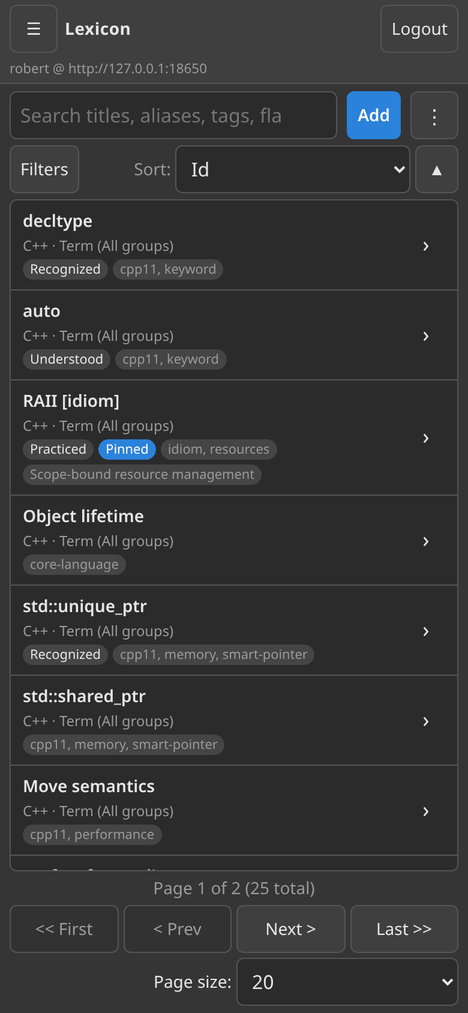
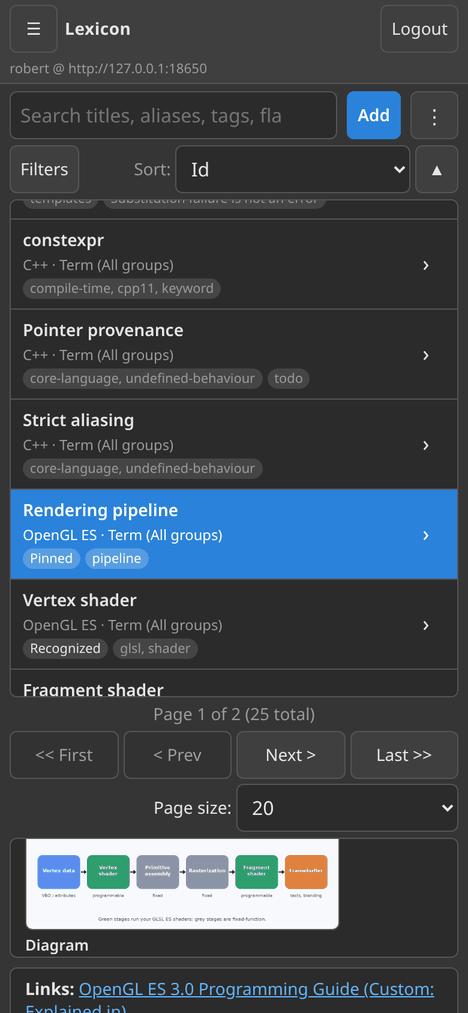
It does everything the desktop client does: search and filters, the item editor with its tabs, recoverable Mass Insert worksheets, Markdown with a live preview, images, links and the relationship graph, review, cards and their quiz, alarms, the Inbox and the Board, export and import. On a narrow screen it turns into a phone layout, and View → Light mode or Dark mode switches its theme.
3. The Android app
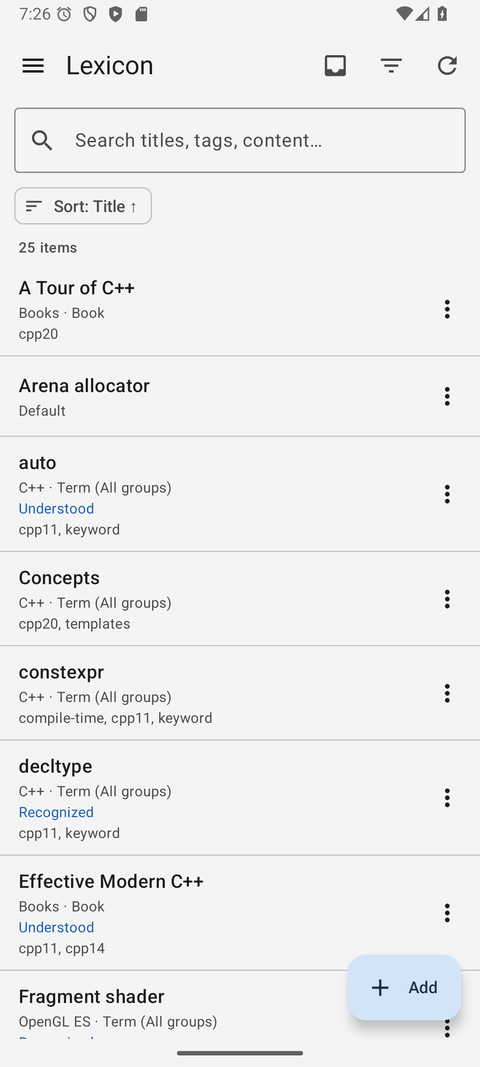
The native app (Kotlin and Jetpack Compose) is built from lexicon-android/ with Gradle and installed as an APK. On first start it asks for the server address, a user name and a password. Remember this phone lets the app renew an expired session without another password prompt; you can turn it off on a shared phone. For a phone and server on the same test network, a debug APK can sign in to a http:// address when you check Allow HTTP for testing on that screen and start the server with --listen 0.0.0.0 --allow-http. Release APKs require HTTPS.
Mass Insert is the deliberate exception: batch worksheets are available on desktop and web, not in the Android app.
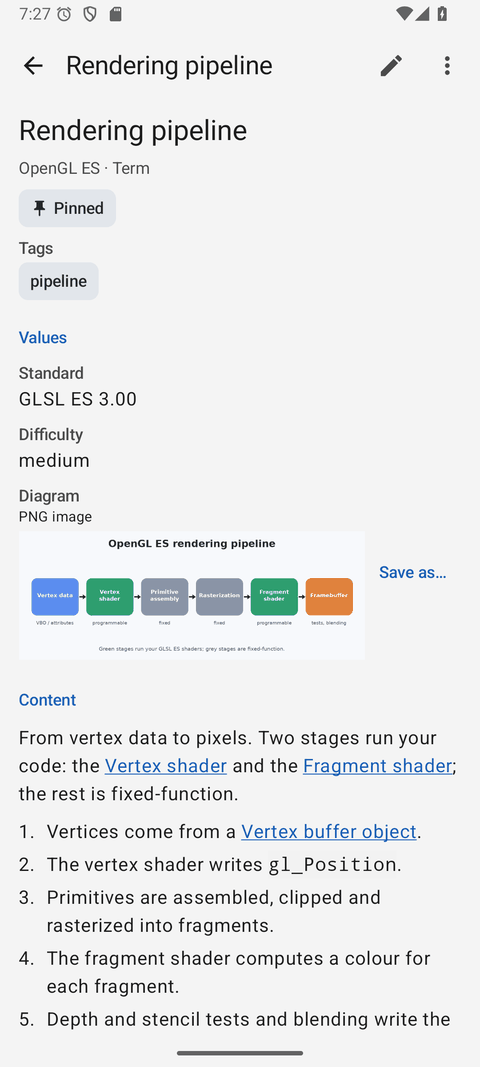
- Items list with server-side search, filters and sorting, CSV export of the loaded page or one item, and the item page with its values, images and rendered Markdown.
- The editor with the same tabs, including image values.
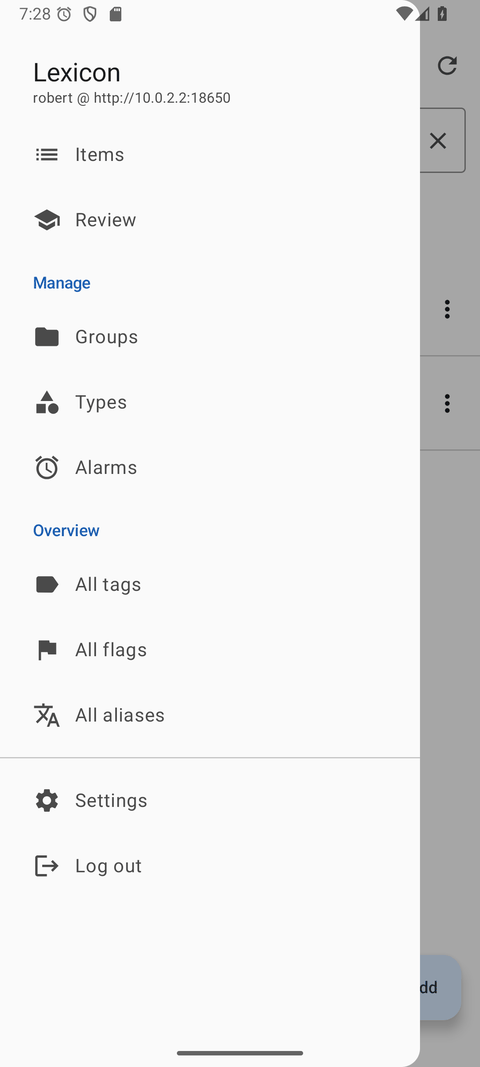
- Review, cards and their quiz, alarms that ring even when the app is closed, the Inbox that also works offline, and named shared Boards.
- Previously loaded pages can be read from an encrypted cache when the server is unreachable. Other edits still need the server; Inbox ideas can wait and sync later.
- Settings can change the password and revoke signed-in sessions or remembered phones. A password change signs every device out.
- The relationship graph, with pinch to zoom and a full-screen mode.
Working on the same dictionary
- One database. The desktop client and the server open the same SQLite file; the web client and the Android app hold no data of their own.
- No silent overwrites. Every item and Board carries a revision. If another client saves first, an older save is refused instead of replacing the newer text.
- Sessions survive a restart of the server, so an upgrade does not sign your phone out.
Start at home Run the server on the machine that holds the dictionary and reach it over your own network or a VPN. That is the smallest setup that gives you the phone and the browser without exposing anything to the internet.